BCloud365: Easy-to-Use Public Cloud Platform for Businesses
As businesses around the world increasingly transition to cloud-based solutions, the demand for simple, cost-effective, and efficient platforms has surged. BCloud365, a lightweight public cloud platform developed by JFTECH, has emerged as a game-changer for businesses across industries. Whether you’re looking to streamline operations, enhance security, or manage your IT infrastructure with ease, BCloud365 is a versatile solution designed to simplify cloud computing for businesses of all sizes.
In this guide, we will walk you through the process of getting and using the BCloud365 app, from installation to managing industry-specific solutions. Whether you're a small business owner, an enterprise, or an individual looking for a better way to handle cloud services, this guide will help you get the most out of BCloud365.
What is BCloud365?
Before diving into the steps for getting and using the BCloud365 app, let's quickly review what the platform offers. Built upon the global infrastructure of JF Cloud, BCloud365 provides a scalable, easy-to-use cloud environment that caters to both Platform as a Service (PaaS) and Software as a Service (SaaS) needs.
No Local Server Deployment: Unlike traditional cloud solutions that require you to deploy your own local servers, BCloud365 is entirely cloud-based. This eliminates the need for complex hardware setups or managing physical infrastructure.
No Technical Expertise Needed: The platform is designed to be user-friendly. It doesn’t require professional-level knowledge or complicated network settings to use. Anyone can get started quickly without the need for specialized training.
Unified Cloud Management: BCloud365 offers a single platform to manage all cloud-related tasks. Whether you need to manage devices, monitor video surveillance systems, or deploy applications, everything is streamlined in one easy-to-use interface.
Industry-Specific Solutions: From security to retail to healthcare, BCloud365 offers pre-configured solutions for different industries. These solutions come ready to use, making it easy for businesses to implement them quickly and efficiently.
Professional Video Surveillance Platform: One of the standout features of BCloud365 is its integrated video surveillance platform, which enables businesses to manage security systems from anywhere in the world. This is especially important for businesses with multiple locations.
Step 1: How to Get the BCloud365 App?
Getting started with BCloud365 is straightforward. Follow these simple steps to download and install the app:
1.1 Downloading the BCloud365 App
BCloud365 is available for both iOS and Android devices. To get started:
For iOS (Apple devices):
Open the App Store on your iPhone or iPad.
In the search bar, type "BCloud365" and press enter.
Tap the Download button to install the app on your device.
Once installed, open the app and follow the setup instructions.
For Android Devices:
Open the Google Play Store on your Android phone or tablet.
Search for "BCloud365" in the search bar.
Tap Install to download and install the app on your device.
After installation, launch the app to begin setting it up.
1.2 Creating a BCloud365 Account
Once the app is installed, you’ll need to create a user account to access the platform. If you’re a first-time user, follow these steps:
Open the BCloud365 App on your device.
On the login screen, tap “Create an Account” or “Sign Up”.
Enter your business email address and a secure password.
Confirm your details and tap Submit to create your account.
You will receive a confirmation email with a verification link. Click the link to activate your account.
After verifying your email, you can log in to the app with your new account credentials.
1.3 Logging In and Accessing the Dashboard
Once your account is set up, log in to the BCloud365 app using the email and password you registered with. Upon logging in, you'll be greeted by the Dashboard, a centralized hub where you can access various features and tools.
From the Dashboard, you can quickly navigate between the following areas:
Device Management
Cloud Applications (PaaS and SaaS solutions)
Video Surveillance Management
Industry-Specific Solutions (Retail, Healthcare, Security, etc.)
Step 2: Setting Up and Using the BCloud365 App
Once you have successfully logged in to the BCloud365 app, it's time to start using it to manage your devices, applications, and services. The app is designed to be intuitive and user-friendly, so setting it up and navigating its features is easy.
2.1 Adding Devices to BCloud365
One of the most convenient features of BCloud365 is the one-click scan code functionality. This allows you to quickly integrate devices into your cloud management system, making it ideal for businesses with multiple devices or IoT solutions.
Here’s how to add devices to BCloud365:
Tap on the "Devices" section from the app's main dashboard.
Click on the "Add Device" button to start the process.
You will see a QR code scanner appear. Scan the device’s QR code or use the manual entry method if the device doesn’t have a QR code.
Once the device is scanned, the system will automatically register it in the cloud, and you will see it listed under your device management section.
2.2 Unified Cloud Management
The BCloud365 app allows you to manage all of your cloud-based operations from a single interface. Here’s how to make the most of this feature:
Device Monitoring: From the Devices tab, you can view all connected devices and monitor their status. For instance, if you’ve added surveillance cameras or sensors, you can check if they are online, view real-time data, or troubleshoot if any device is malfunctioning.
Data Storage and Management: BCloud365 provides cloud storage for your data, whether it’s video footage, business documents, or IoT data. You can upload, view, and manage files directly from the app. The platform also enables file sharing, allowing you to collaborate on documents or share reports with colleagues or clients.
Application Deployment: You can quickly deploy applications in both PaaS and SaaS formats. For example, if you need a custom application for managing inventory or business analytics, BCloud365 offers a robust platform to support the development, hosting, and scaling of these apps.
Real-Time Analytics: Access detailed insights and reports about your cloud activities. Whether it's tracking device performance, monitoring video feeds, or reviewing business analytics, the app provides real-time data that can help you make informed decisions.
2.3 Using the Professional Video Surveillance Platform
For businesses that need advanced security features, BCloud365 comes with a professional video surveillance platform that integrates seamlessly with the cloud. Here’s how to use it:
Add Surveillance Devices: Similar to other devices, add your cameras and security devices by scanning their QR codes.
Monitor Video Feeds: Once added, you can access live video feeds from any of your connected cameras directly from the BCloud365 dashboard.
Configure Alerts: Set up real-time alerts for specific activities, such as motion detection or unauthorized access. The app will notify you immediately if any suspicious activity is detected.
Access Historical Footage: BCloud365 also allows you to access stored video footage, making it easy to review past incidents or perform audits.
2.4 Accessing Industry-Specific Solutions
One of the most significant benefits of BCloud365 is its ability to provide pre-configured solutions for various industries. Here's how you can access and use them:
Choose Your Industry: On the main dashboard, select the industry-specific solution you want to implement, such as retail, healthcare, or manufacturing.
Configure the Solution: Once selected, follow the on-screen prompts to configure the solution. BCloud365 will provide you with step-by-step instructions for setting up the platform to meet your industry-specific needs.
Manage and Monitor: After deployment, you can manage and monitor all activities related to that solution through the app. For example, in retail, you may track inventory and sales, while in healthcare, you can monitor patient data and medical equipment.
Step 3: Managing and Scaling with BCloud365
As your business grows, BCloud365 makes it easy to scale up your cloud infrastructure. Here’s how to manage the growth of your cloud operations:
3.1 Scalability Features
Automatic Scaling: BCloud365 automatically adjusts your cloud resources based on usage. If you need more storage or processing power, the platform will scale up accordingly without manual intervention.
Manage Multiple Accounts: If your organization has several departments or teams, you can manage multiple user accounts from the same central dashboard, assigning roles and permissions as needed.
3.2 Cost Management
BCloud365 uses a subscription-based pricing model, allowing you to pay only for the services and resources you use. The app offers real-time billing insights, letting you track your usage and costs, so you can manage your budget effectively.
Frequently Asked Questions (FAQs)
1. What is BCloud365?
Answer: BCloud365 is a lightweight public cloud platform developed by JFTECH that provides cloud-based services for businesses. It offers both Platform as a Service (PaaS) and Software as a Service (SaaS) solutions. With features like one-click device integration, unified cloud management, and industry-specific solutions, BCloud365 is designed to simplify cloud computing for businesses.
2. How do I get the BCloud365 App?
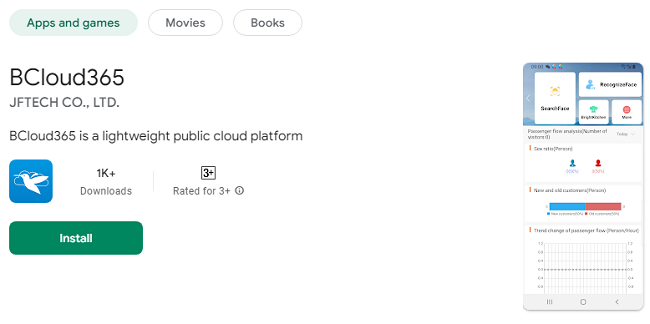
Answer: You can download the BCloud365 app from the App Store (for iOS) or Google Play Store (for Android). Simply search for "BCloud365" and tap to install the app on your device.
3. Do I need technical expertise to use BCloud365?
Answer: No, BCloud365 is designed to be user-friendly and doesn’t require technical expertise. The platform is easy to set up and manage, with simple features like one-click device integration and an intuitive interface.
4. Can I use BCloud365 without deploying local servers?
Answer: Yes, BCloud365 is entirely cloud-based. You do not need to deploy local servers or manage physical infrastructure, which makes it easy to use for businesses of all sizes.
5. What devices can I add to BCloud365?
Answer: You can add a wide range of devices to BCloud365, including video surveillance cameras, IoT devices, sensors, and other connected devices. You can easily integrate them by scanning the device's QR code via the app.
6. What industries does BCloud365 support?
Answer: BCloud365 supports a variety of industries, including retail, healthcare, manufacturing, security, and more. The platform offers industry-specific solutions tailored to each sector’s needs.
7. How do I add devices to BCloud365?
Answer: To add devices, go to the "Devices" section of the app, click on "Add Device", and use the one-click scan code feature to scan the device’s QR code. The device will be automatically registered and integrated into your BCloud365 account.
8. Can I use BCloud365 for video surveillance?
Answer: Yes, BCloud365 has a professional video surveillance platform that allows you to add cameras, monitor video feeds, set up alerts, and store footage securely in the cloud.
9. Is BCloud365 secure?
Answer: Yes, BCloud365 employs advanced encryption and multi-layered security to protect your data. It also complies with industry standards for data privacy and security, ensuring that your information is safe.
10. Do I need an internet connection to use BCloud365?
Answer: Yes, since BCloud365 is a cloud-based platform, you need an internet connection to access and use the services. However, once your devices are connected and data is synced, you can access your information from anywhere.
11. Can I use BCloud365 on multiple devices?
Answer: Yes, you can log into your BCloud365 account on multiple devices (smartphone, tablet, or computer) using the same login credentials to access and manage your cloud resources.
12. How does BCloud365 handle billing?
Answer: BCloud365 uses a subscription-based pricing model. You only pay for the services and resources you use. You can monitor your usage and costs through real-time billing insights available in the app.
13. Is there a free trial for BCloud365?
Answer: BCloud365 offers flexible pricing, but details on free trials or specific promotional offers may vary. You can check their website or the app for any available trials or offers.
14. Can I customize my cloud applications with BCloud365?
Answer: Yes, BCloud365 offers Platform as a Service (PaaS) solutions, allowing you to develop, deploy, and manage custom cloud applications tailored to your business needs.
15. What if I need support while using BCloud365?
Answer: BCloud365 provides customer support through its help center. You can access FAQs, troubleshooting guides, or reach out to the support team for assistance via the app or website.
16. Can I access BCloud365 from anywhere?
Answer: Yes, as a cloud-based platform, BCloud365 can be accessed from anywhere with an internet connection. This flexibility is especially useful for remote teams or businesses with multiple locations.
17. What is the pricing structure for BCloud365?
Answer: BCloud365 uses a subscription-based pricing model, where businesses pay for what they use. The platform offers different pricing plans depending on your needs, including PaaS and SaaS solutions. For exact pricing details, visit the BCloud365 website or contact their sales team.
18. Is BCloud365 suitable for small businesses?
Answer: Yes, BCloud365 is designed to be scalable and user-friendly, making it an ideal solution for small businesses. Its low-cost and simple setup make it accessible to businesses without a large IT department.
19. Can I migrate my existing data to BCloud365?
Answer: Yes, you can migrate your existing data to BCloud365. The platform supports seamless data transfer from local systems or other cloud services, making the transition to BCloud365 smooth and easy.
20. Does BCloud365 offer a video surveillance solution?
Answer: Yes, BCloud365 has an integrated video surveillance platform that allows businesses to monitor, record, and manage video feeds from their security cameras. It also includes features like motion detection alerts and cloud storage for video footage.
Conclusion: Why You Should Use the BCloud365 App?
BCloud365 offers a powerful, flexible, and easy-to-use cloud platform that can streamline operations for businesses of all types. Whether you need to manage devices, run custom applications, or ensure robust security with video surveillance, BCloud365 provides a comprehensive solution that requires minimal technical expertise.
By following the steps outlined in this guide, you can quickly get started with the BCloud365 app and take full advantage of its capabilities. With its user-friendly interface, industry-specific solutions, and robust features, BCloud365 is the ideal cloud platform for businesses looking to simplify their cloud management while scaling efficiently.
Whether you’re looking to improve your security, manage remote operations, or build and deploy cloud applications, BCloud365 offers the tools you need to succeed in today’s digital world.